Downloading maps
Everything NavForge does out on the road comes off a region you’ve downloaded — the map, the routing, the speed limits, the cameras, the fuel stops. This page covers which regions exist, how big they are, what’s inside one, and how updating and deleting really behave.
Getting to the list
Tap the menu button at the top-left of the map, then Download Maps. If any of your installed regions has a newer version available, a small number sits on that menu item.
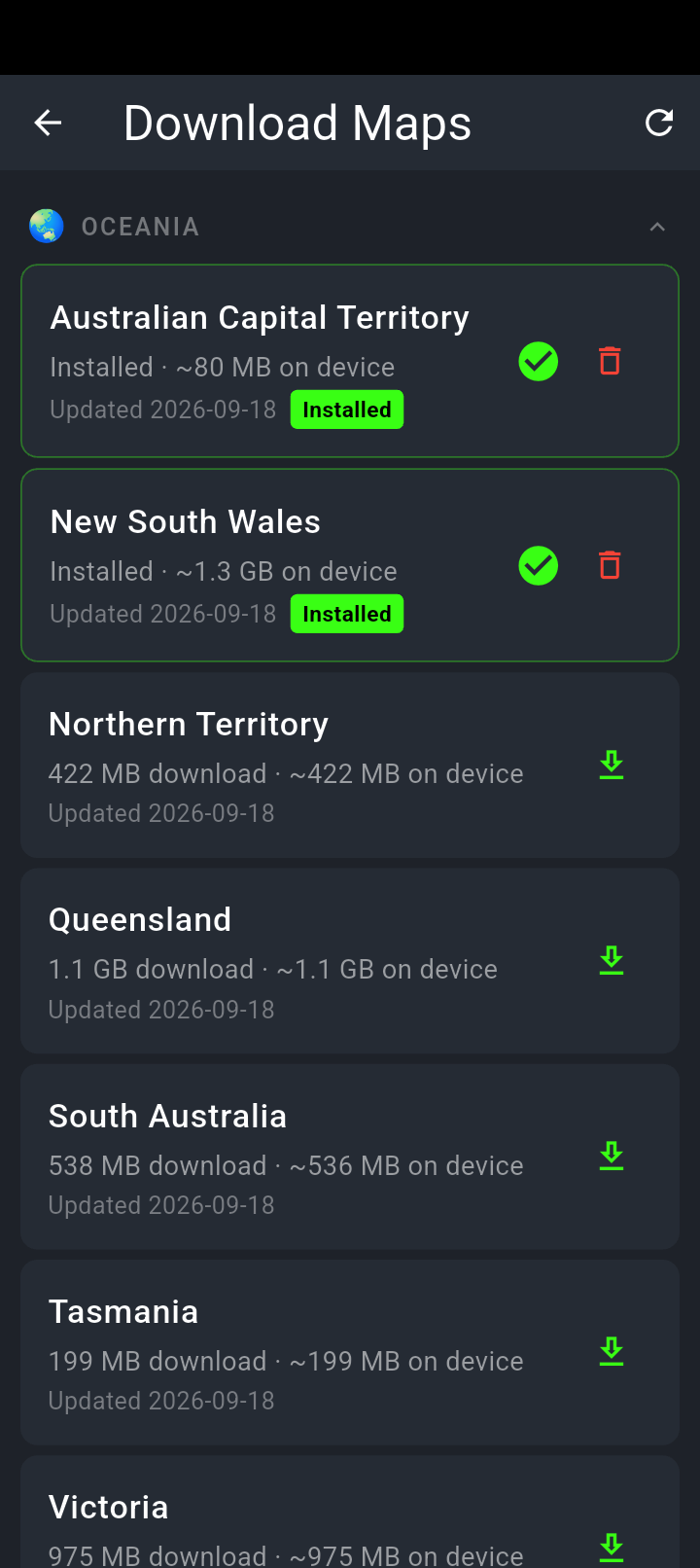
Regions are grouped by continent. A green arrow means it is not on the phone yet; a size in megabytes tells you what it will cost you.
New South Wales here is already installed and has an update waiting, so it shows its size on the device, an Update button and a bin to remove it.
Which regions exist
The list runs to 255 regions across seven continents. 125 of them are available today: all 13 in Oceania, 47 in Europe and all 65 in North America. Everything in Central and South America, Asia and Africa, and eight of the European entries, currently shows Coming soon.
The Oceania regions, with the download the card quotes today:
- Australian Capital Territory — 79 MB
- New South Wales — 1.3 GB
- Northern Territory — 422 MB
- Queensland — 1.1 GB
- South Australia — 536 MB
- Tasmania — 199 MB
- Victoria — 966 MB
- Western Australia — 1.1 GB
- New Zealand — 1.2 GB
- Papua New Guinea — 464 MB
- Fiji — 68 MB
- New Caledonia — 69 MB
- Vanuatu — 28 MB
Europe runs from Andorra at 43 MB to France and Germany at about 11.5 GB each; North America from New Brunswick at 266 MB to the big states and provinces at a few gigabytes. The number on each card is the download, and the space a region takes once installed is close to it.
Every region now comes with a hill-shading file, which for a mountainous region can be a third of the download — New South Wales carries 330 MB of it. The card’s number includes it.
Asking for one that isn’t there
Tapping the grey Coming soon chip opens a short dialog asking whether you’d like an email when that region is ready. You can leave the email box blank and still register interest.
The app shows its thank-you message before it knows whether the request actually got through. If you’re offline or the connection drops, you’ll still be told we’ll email you — but nothing was sent, and the same region won’t let you ask again for 30 days. If you want to be certain we’ve heard you, tap it when you have real signal.
What’s inside a region
A region isn’t one file. It’s ten, downloaded in parallel, and every one has to land before anything is installed:
- The map you look at
- The hill shading that gives the map its relief
- The routing data that works out your turns
- Towns and suburbs, used for search and for naming a spot you long-press
- Speed cameras
- Fuel, food, hotels, camping and attractions
- Twisty-road data, which also carries road names for search
- Restricted roads — gates, private tracks, no-access
- Speed limits
- The main offline search index
The progress ring on the card is a weighted average across all ten, so it moves in a way that reflects the megabytes rather than the number of files.
If a region was installed before its hill-shading file existed, its card reads Hill shading available · 330 MB download with a Hill shading button. Tapping it fetches that one file only — the map, the routing and the rest are not downloaded again — and the hills appear on the map the next time it draws. A region without the file still works; it’s flat.
They go into NavForge’s own private storage, not into your Downloads folder. You won’t see them in a file browser, and they are removed if you uninstall the app or clear its data.
While it downloads
The card badge reads Downloading, then Installing… once every file is in and the routing data is being unpacked, then Installed. Android shows a Downloading map notification with a progress bar, and Download complete when it’s done.
There is no cancel. Once you tap the arrow on a 1.3 GB region, there’s no button to stop it.
There is no free-space check. The app will happily start a 1.3 GB download with 200 MB free and only fail part-way through.
There is no Wi-Fi-only option. If you’re on mobile data when you tap download, it downloads on mobile data.
Updating
When a newer version of a region you have is published, the card shows an amber Update badge and the download arrow becomes a refresh arrow.
There is no patching and no partial update. Updating New South Wales means another 1.3 GB. Treat an update the same as a fresh download: Wi-Fi, plugged in, plenty of room.
Two things to know about interrupted updates:
- If a normal download is interrupted, NavForge starts it again next time you open the Download Maps screen — from the beginning, not from where it stopped. On a big region that means downloading the whole thing again.
- An interrupted update is not picked up. You have to notice the Update badge is still there and tap the refresh arrow again yourself.
The update badge is worked out by comparing dates, not by inspecting the files, so a half-finished update keeps saying Update available until you finish it.
Deleting
The red bin icon on an installed region asks Delete region? and explains it removes the region from your device and that you can re-download it later. Tap Delete to confirm.
Nine of the ten files are removed, the hill-shading file among them. The unpacked routing data is deliberately left behind, because regions share it and removing one region’s share can damage another’s. The delete dialog doesn’t mention this. If you’re deleting to free up storage, expect less back than the number on the card.
When something goes wrong
- An Install failed badge appears briefly, along with a red message naming the region. The badge clears itself after a few seconds; the region stays as it was.
- A corrupt download gives you a message telling you to delete the region and try again. Your previously installed map isn’t touched — the new file is checked before anything is replaced.
- The list won’t load. If NavForge has seen the list before, it shows the saved copy and puts a small cloud icon in the top bar with the tooltip Showing cached list. Sizes and dates in that saved copy may be out of date.
- No regions available. A phone that has never had internet since installing NavForge has no saved list to fall back on, so the screen is empty until you connect once.
The refresh button in the top-right of the screen fetches the list again.
The free plan
On the free plan you can have one region installed. The screen carries a banner saying so, and regions you can’t add show a padlock rather than a download arrow. The padlock isn’t a button — nothing happens if you tap it. Updates to the region you already have still work normally.