Detour
Roadworks, a crash, a flooded causeway, a gate that’s shut. The route says straight on and straight on isn’t happening. One tap tells the app to find a way around whatever is in front of you, without losing your destination.
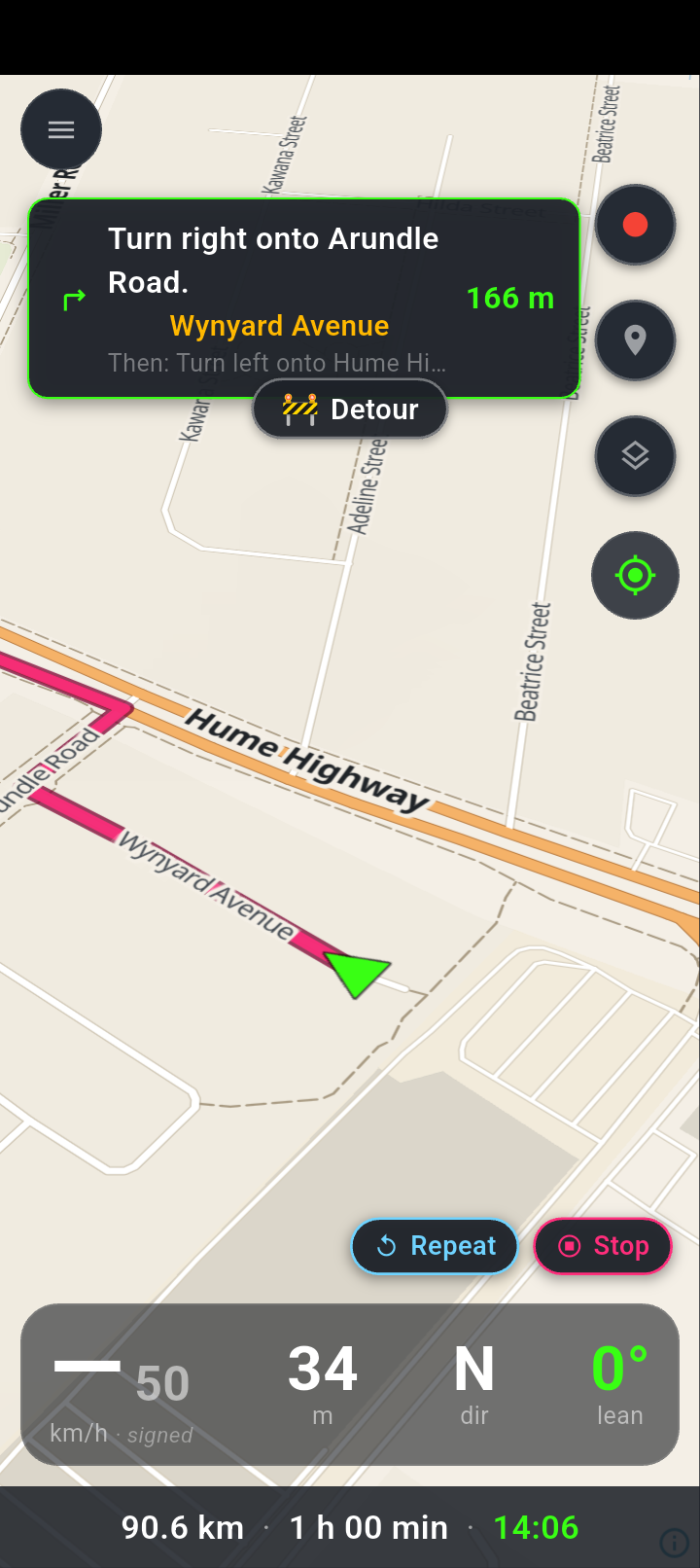
The Detour pill sits centred under the turn card, outlined so it doesn’t get confused with anything else on screen.
It only appears while you’re navigating — there’s nothing to route around otherwise.
Using it
-
Stop somewhere safe
This isn’t a glance-and-tap control. You’re asking the app to rebuild the route while you’re sitting in front of an obstruction — pull over.
-
Wake the screen if the pill has gone
The pill fades out with the rest of the nav buttons ten seconds after your last tap. Tap anywhere on the map and it comes straight back.
-
Tap 🚧 Detour
The pill turns into a spinner while it works, and won’t accept a second tap until it’s finished.
-
Listen for Rerouting around road closure
That’s your confirmation a new route was found. The line on the map redraws and the turn card picks up the first instruction of the new way round.
What the app actually does
It takes the next 500 metres of your current route and marks it as unusable — dropping a marker roughly every 50 metres along it — then asks for a fresh route from where you’re standing to the same destination, with those markers excluded.
Two things follow from that:
- Your destination doesn’t change. You’re not re-planning the trip, only the next bit of it. Waypoints, preferences and the end point all stay as they were.
- Only the road immediately ahead is ruled out. Everything beyond 500 metres is still fair game, including the same road further along — so the new route may well rejoin it after the blockage.
Five hundred metres is enough for roadworks or a crash scene. It isn’t enough for a road closed for ten kilometres. If the new route sends you a short way round and back onto the same closed road, ride to where you can see it’s still shut and tap the pill again — each tap excludes a fresh 500 metres from wherever you now are.
If it can’t find a way
You’ll get a message at the bottom of the screen: Cannot find alternate route. Your existing route is left completely untouched — nothing is lost by trying.
That usually means one of three things:
- There genuinely isn’t another road. Common on a single bridge, a causeway, or a mountain pass.
- The detour lies outside the map region you’ve downloaded.
- The only alternative is a road your routing preferences rule out heavily enough that the engine won’t take it.
In that case your options are to turn around and set a new destination, or to ride to the far side of the obstruction some other way and let the normal off-route handling rebuild the route from there.
Things worth knowing
The closure isn’t remembered
The exclusion applies to that one recalculation only. It isn’t saved, and it isn’t sent anywhere. Reset your route later that day and it will happily send you down the same road again. There’s also no way to tell the app a road has reopened — you don’t need one, because nothing was stored.
It isn’t shared with other riders
NavForge doesn’t collect or distribute closure reports. Tapping the pill affects your phone and your current route, nothing else. If you’re riding in a group, everyone who needs to go round has to tap it themselves.
Your progress through the route resets
Because the route is replaced rather than edited, the app starts tracking turns from the beginning of the new route. You’ll hear the next instruction announced fresh even if you’d already heard something similar a moment earlier. Remaining distance and arrival time recalculate from the new route as well, so expect both to jump.
There’s no live traffic or closure feed behind this. It works entirely offline because it’s your eyes doing the reporting. That also means it will never warn you about a closure ahead; it can only respond once you’ve seen one and tapped the pill.