Ride calendar
The calendar does two jobs. It shows you which days you’ve actually ridden, and it holds trips you’ve planned for a date in the future so you can load one on the morning without setting it up again. Open it from the menu under Ride Calendar.
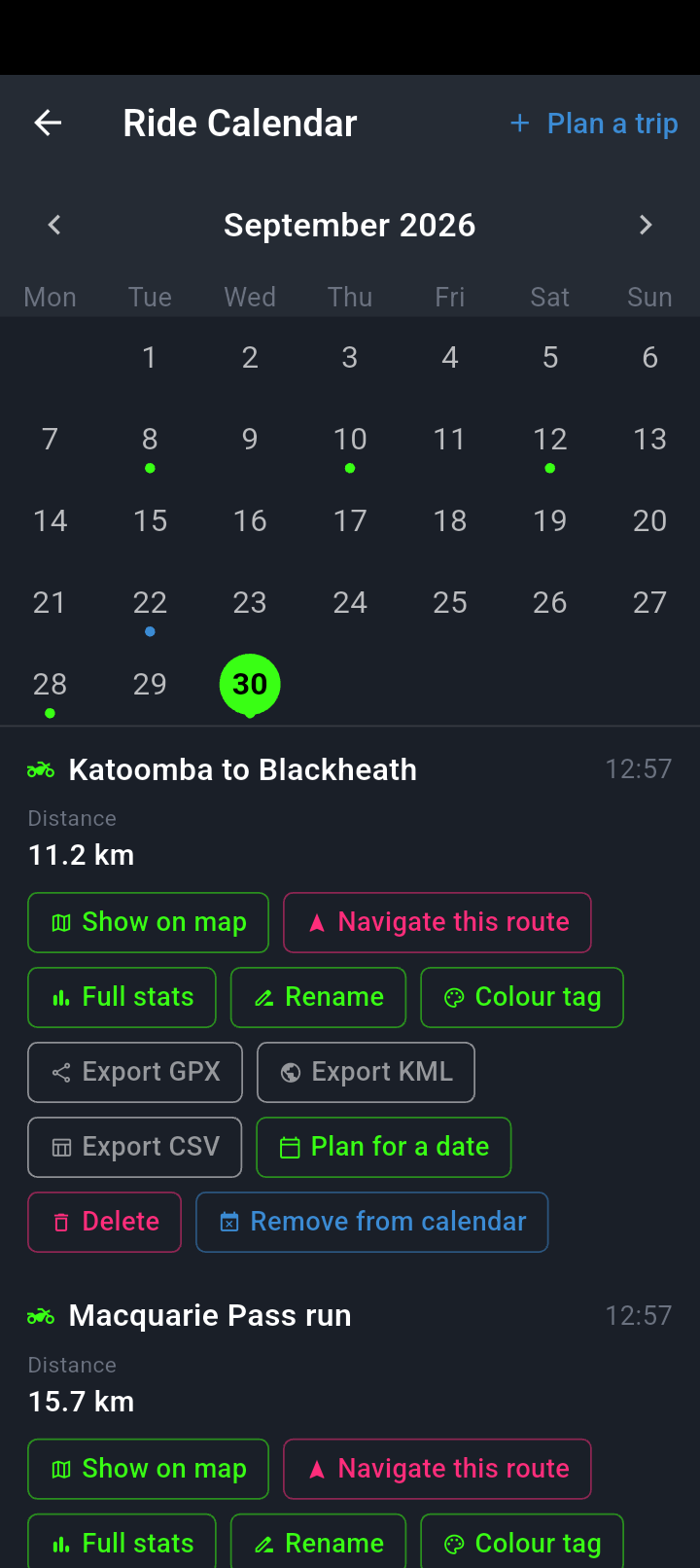
A green dot under a date means something is recorded or planned that day. Today is ringed.
Tap any date to see what is on it; the day shown here has nothing, so it reads No rides or trips this day.
Saving a trip to a date
There are two ways in, and both end at the same date picker:
- From the route planner. Plan your route as usual, then choose Save to Calendar. Your stops, your per-leg route styles and your route settings are stored with it, so the trip comes back the way you built it rather than however the app is set on the day.
- From My Rides. The three dots on any ride or imported GPX offer Plan for a date, which pins the recorded line itself to a date. The same action sits on a ride’s calendar card, under the same name.
The picker is titled Select date and puts a green dot on any date you’ve already booked. If you pick one of those you’ll get Already planned telling you how many are there, with Save anyway if that’s fine. On success you’ll see a brief confirmation at the bottom of the screen.
The picker opens on today and runs a year forward. There’s no way to save a trip to a date that’s already gone, which matters if you were hoping to backfill last month’s rides — do that by recording or importing, not by planning.
The confirmation only appears when the trip was written. If something goes wrong writing it, the picker closes and nothing is said. Open the calendar and check the date carries a blue dot before you rely on it.
Loading it on the day
Tap the date, then Navigate on the trip. What happens next depends on what kind of trip it is.
A trip you planned in the route planner reopens the planning sheet with your stops and your saved settings back in place, so you can look it over and set off. If you’re more than about half a kilometre from where the trip was meant to start, the app uses where you are now as the start and pushes the original start point in as your first stop — so you get taken there rather than the first leg quietly disappearing.
A trip saved from a recorded ride or an imported GPX is followed as the line it is, corner for corner, with no re-planning. You get the same card as My Rides asking how you want to ride it — start it, get guidance to the start, reverse it, or pick it up partway, depending on where you’re standing. Some blue cards carry a small Replays saved route marker: it means Navigate will replay the exact saved line rather than plan a fresh route on the day.
Two things can stop it loading. Trip not found — it may have been deleted. means the file behind it has gone. Trip data invalid — cannot restore. means the saved trip is missing something it needs — see the warning below.
Editing a date
Moving a trip to another date rewrites it, and when it does, three things are dropped and are not recoverable: your via-stops, the route style you chose for each leg, and the route settings you saved with the trip. What’s left is a start, an end and a line on a map.
A round trip put through this loses the waypoints that make it a loop, and afterwards it won’t load at all — you’ll get Trip data invalid — cannot restore. when you try to ride it.
If the trip has stops, or is a round trip, or you cared about the settings you saved with it: delete it and save it again on the new date. A minute of replanning is cheaper than finding out on the morning. Edit date is only safe on a plain start-to-finish trip with nothing in between.
There’s one more oddity worth knowing. You can’t save a trip to a date in the past, but Edit date will happily move one backwards — its own picker goes back years. A trip parked on last Tuesday does no harm, but it sits somewhere you’ll never think to look for it.
The other buttons
- Show on map — draws the trip’s saved line on the map without starting anything, so you can look the route over first.
- Export GPX — hands the trip to the share sheet as a GPX file. If the trip was saved from a recorded ride, the export reaches back to that ride and carries its full data — timestamps, speeds, lean — not only the line.
- Delete — asks Delete trip? before removing it from the calendar. It doesn’t touch any recorded ride.
- Plan a trip in the top bar closes the calendar and drops you into search, so you can build something new and save it straight back.
Rides on the calendar
Under any planned trips, each ride recorded or imported on that day is listed with its distance, and its duration and top speed where the file has them. A ride’s card here carries the same seven actions as its three dots in My Rides — show it on the map, navigate it again, read its stats or analytics, export it, plan it for a date, delete it — plus one that only exists on the calendar: Remove from calendar.
Remove from calendar clears the ride’s entry off the calendar without touching the ride — it stays in My Rides with everything intact, and an Undo appears at the bottom of the screen in case you didn’t mean it. Delete is the opposite and says so before it acts: the dialog warns This deletes the ride from My Rides too. A ride’s calendar entry is a mirror of the ride itself, so deleting it here deletes it everywhere.
Move to a different month and the selection clears, so you’ll see an empty panel until you tap a date in the new month. That’s deliberate — it stops last month’s ride sitting under this month’s grid.
With nothing saved at all, the calendar shows No rides recorded yet and offers Plan a trip.
Planning at home on wi-fi means the route settings you want are the ones stored, and the ride is one tap away when you’re standing in the driveway in gloves.