Reporting a problem
If the app sends you down a goat track, mis-reads a speed limit, or falls over entirely, there is a form built into it. Open the menu and tap Report a problem. It takes about a minute, and a report with a road name and a time in it is worth ten that say “routing is broken”.
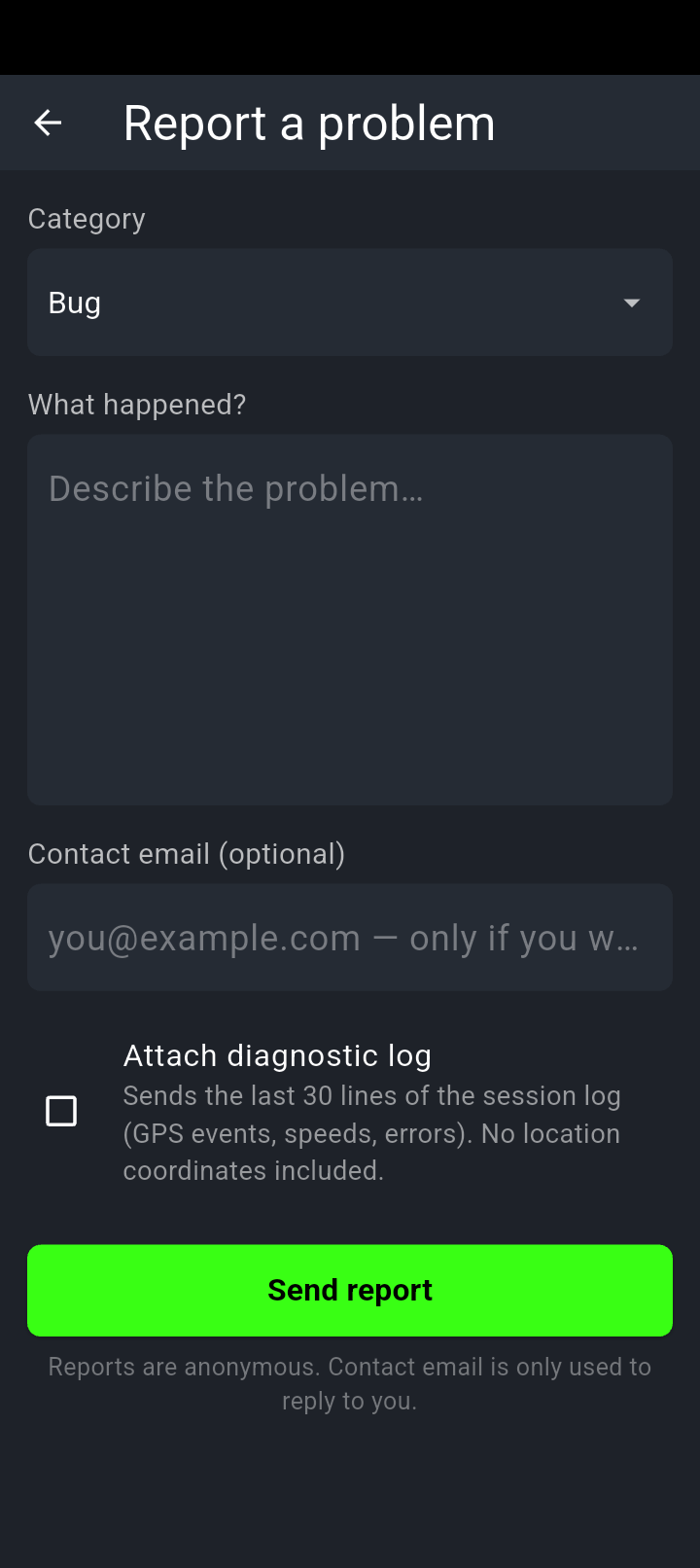
Category, what happened, and an optional email if you want a reply. Nothing else is required.
The note under Attach diagnostic log says exactly what it sends — the last 30 lines of the session log, and no location coordinates.
Filling it in
-
Pick a Category
Six to choose from: Bug, Routing, Map/Region, Crash, Feature request and Other. It starts on Bug. Getting this right matters more than it looks — routing complaints and map-data complaints are chased down in completely different places.
-
Describe it under What happened?
You have 4,000 characters, which is a great deal more than you will need. A counter appears in the corner once you are within 500 of the limit, reading something like 380 left. Leave this empty and tapping send gets you Please describe the problem. and nothing is sent.
-
Add an email if you want an answer
Contact email (optional) does what it says. Leave it blank and the report still arrives, with no return address on it.
-
Decide about the log
Attach diagnostic log is off unless you turn it on. See below for exactly what it sends.
-
Tap Send report
The button shows a spinner while it goes. You will get either Report sent — thank you. and the screen closes, or Queued — will send when connected. and the screen stays open.
If you are out of range, the report is written to your phone and sent by itself the next time you open the app with a connection. That is why the wording is “queued” rather than “failed”. You can report a problem from the middle of nowhere, at the moment it happens, which is exactly when the detail is freshest.
What to put in it
The difference between a report that gets fixed and one that sits there is nearly always detail. Worth including:
- Where. A road name, an intersection, a town, or the coordinates if you can read them off the map. “Somewhere near Bathurst” is a big search area.
- When. The date and roughly the time. It lets a ride log be lined up against what you describe.
- What you expected, then what happened. Two sentences. “I expected it to stay on the highway; it turned me onto a gravel side road” says more than a paragraph of frustration.
- Whether you had signal. Plenty of behaviour differs between online and offline, and knowing which one you were in halves the guesswork.
- Whether it happens every time. Once is a report. Every time on the same corner is a much easier fix.
Pull over at the next safe spot and write it then. By the evening the road name has gone and it becomes “that turn after the bridge”.
What actually gets sent
Reports are anonymous. There is no account and no name attached. Along with your category, message and optional email, each report carries a small amount of context so it can be matched to a build:
- An anonymous device ID, generated on your phone the first time it was needed
- The app version and build number — the same pair printed at the bottom of the Settings screen
- Your Android version
- Which map regions you have downloaded, by name
That is the lot. No contacts, no advertising identifiers, nothing from other apps.
The diagnostic log checkbox
Ticking Attach diagnostic log adds the last 30 lines of the current session’s log to the report — GPS events, speeds and errors. As the checkbox itself says, no location coordinates are included.
It is off by default and stays off unless you tick it, every single time. If you are reporting something that only shows up while riding — guidance going quiet, a gauge reading wrong, the app misbehaving mid-navigation — ticking it makes the report far more useful. For a plain feature request there is no reason to bother.
The log lines that get attached come from the session you are in right now. Report a problem in the same sitting it happened and the relevant lines are there. Come back tomorrow and the box will attach a log about opening the app this morning, which helps nobody.
If the app crashed
Choose the Crash category and describe what you were doing at the time — planning a route, mid-navigation, opening a saved ride, downloading a region. Whether the app was in the foreground or your phone was in your pocket matters too. A crash report with a reproducible sequence in it is the single most useful thing you can send.