The route controls
Underneath the two preset buttons sits a stack of controls — the preferences you hand to the router before it plans anything. Most are rows of named chips you tap. One, Prefer twisty roads, is still a slider. A Road leg shows five of them; an Adventure leg shows seven, because two only make sense off the bitumen.
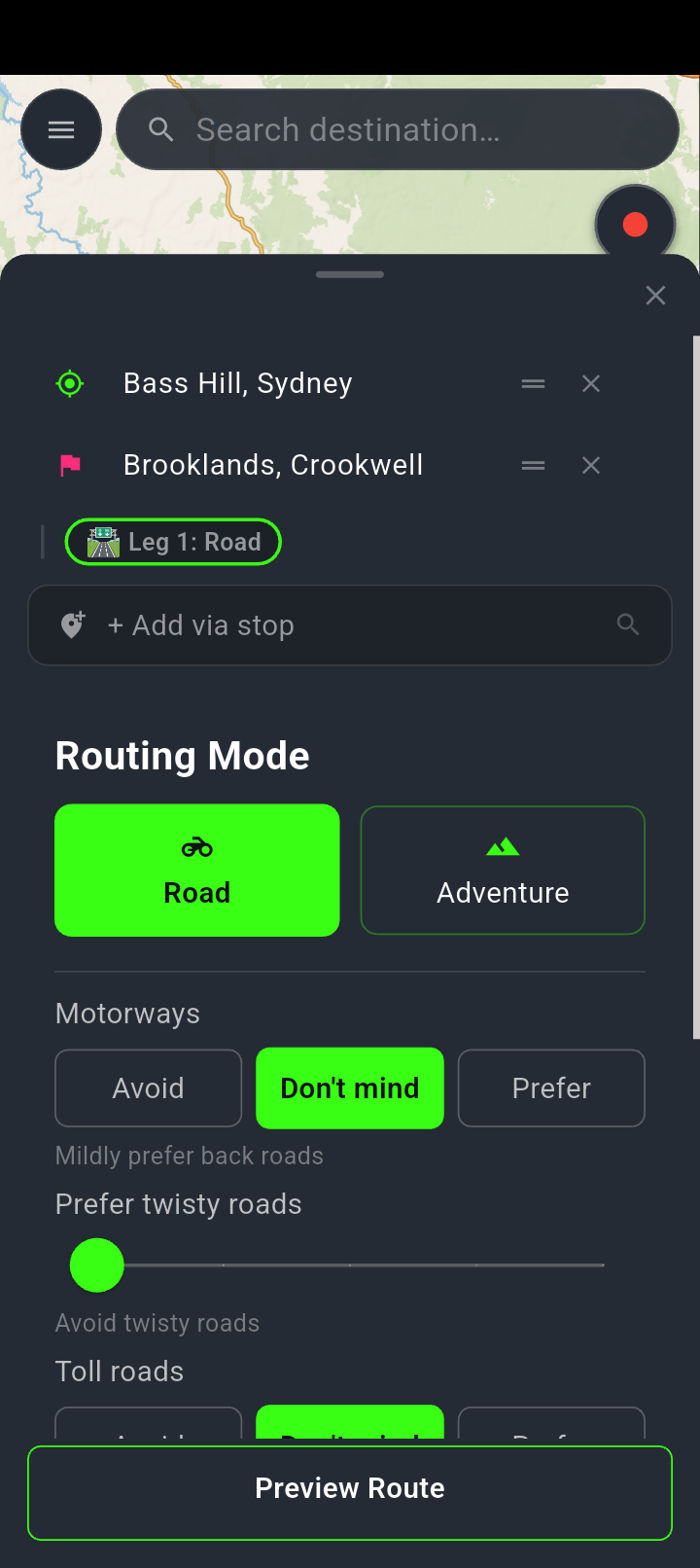
The controls live in the planning sheet, below the Road and Adventure buttons. The round trip sheet has the same set.
The grey line under each one says, in words, what you have asked for. Motorways is a row of chips; Prefer twisty roads below it is the one remaining slider.
How the controls work
Most of them are chips — a row of two or three named choices, one of which is lit. Tap the one you want. Underneath, in grey, a line tells you what you have asked for; it changes with your choice, and the route recalculates straight away.
There is no in-between on a chip, and that is deliberate. Each one is a value the router genuinely behaves differently at. An earlier version of NavForge gave you five-stop sliders for all of these, which promised a precision the roads do not deliver — three of them were measured and found to give the same route across most of their range.
One control is still a slider: Prefer twisty roads. It has five stops and snaps to them. Drag it and the caption underneath updates as you go; let go and the route recalculates. Its middle stop means no preference — not seeking corners out, not avoiding them. Left of the middle avoids, right prefers, and the further you go the harder you are pushing. Parked in the middle it has no effect on your route at all. It kept its slider because it is the one control that was measured to give genuinely different routes across the whole range.
These are preferences competing for the same route, not switches. Asking hard for twisty roads and asking for motorways at the same time gives the router two instructions that pull opposite ways, and what comes back is a compromise you may not have pictured. Change one at a time and look at the result.
The controls, one by one
Motorways three chips
How much you want the big roads. Avoid · Don’t mind · Prefer. Pick Avoid for a slower run on smaller roads, Prefer when you want distance covered. Don’t mind is what Road uses and reads Mildly prefer back roads underneath.
Prefer twisty roads slider · Premium
How much the router should go looking for corners. From Avoid twisty roads on the left, through No twisty preference, to Maximum twisty roads on the right. Wound fully right it will happily add distance to find bends.
This is not the same thing as the twisty road layer. That layer paints bendy roads on the map so you can see them; this slider changes the route the router hands you. Turning the layer on does nothing to your route, and moving this slider does nothing to the map.
Gravel & unpaved two chips · Adventure legs only
How willing you are to leave the bitumen. Sealed or Gravel. This is the one that decides whether a route is an adventure or an errand.
It carries a note of its own in the app, because it has a cost worth knowing before you pick it: it takes dirt and gravel roads where the map has them, never more than half again the sealed distance, and most unsealed roads carry no speed limit in the map, so the router treats them as slow and the estimated time goes up.
Hilly routes two chips · Adventure legs only · Premium
Terrain rather than tarmac. Flatter or Hilly. Worth pairing with the elevation profile, so you can see what you have asked for before you set off.
Toll roads three chips
- Avoid — goes around tolls where there is a way around. It is not a ban; see the warning below.
- Don’t mind — takes a toll road when it is the better route. This is what Road uses.
- Prefer — favours toll roads even when a free route is similar. It will ride further to use one, so pick it only if that is genuinely what you want.
Ferry crossings two chips
Avoid stays on the road even if going around takes much longer; Allow takes a ferry when it beats riding around. There is no middle, because the router does not have one.
The difference can be large. Wisemans Ferry is 4 km across, against 38 km round to a bridge.
Main roads two chips
The bluntest control on the sheet, and the newest. Avoid or Don’t mind. Set to Avoid, it tells the router to keep off motorways, highways and main roads and take back streets instead — usually longer and slower. The extra distance and time are shown under the route, so you can see what you are paying before you set off.
This is not the same as setting Motorways to Avoid. That one weighs motorways against everything else; this one pushes the whole class of big roads away, main roads included.
Gravel & unpaved and Hilly routes are hidden while a leg is set to Road, and appear as soon as it is Adventure. If you have gone looking for the gravel control and cannot find it, that is why — tap Adventure first. Your route is still planned with a value for both either way; what changes is whether you can set them.
No chip and no slider rules a road out. They are strong preferences, and a strong preference loses to necessity. Avoid on tolls means go around where there is a way around — on a run from Bass Hill to Sydney Airport there is no toll-free alternative, so you get a toll road either way. If you need a road, a toll or a crossing genuinely excluded, check the route on the map before you ride rather than trusting a control to have done it.
What you get on a free plan
Most of the controls — motorways, gravel, tolls, ferries and main roads — work on any plan. Two are Premium: Prefer twisty roads and Hilly routes.
On a free plan those two show a padlock beside the name, are drawn in grey rather than green, and do not respond when you touch them. Your routes are still planned with a setting for each of them; what you cannot do is change it.
Tapping one does nothing you can see — no message, no upgrade prompt. That is unlike the Adventure preset button above it, which does explain itself when you tap it while locked. If a control seems dead, the padlock beside its name is the reason.
Presets overwrite every control
Tapping Road or Adventure snaps every control to that preset’s baseline, including any you had set by hand. There is no confirmation and no undo. Set the preset first, then fine-tune — see Road and Adventure presets for what each one is for, and how per-leg profiles work.
What you set is remembered on the phone and comes back next time you open the sheet. Saving a trip to the calendar keeps which legs were Road and which were Adventure, but not your hand-tuning — a restored trip comes back at its preset baseline.
That many controls is a lot of rope. Change a single one, plan the same trip again, and compare the distance and time on the result card against what you had. You learn what each control is worth far faster that way than by moving four at once and trying to reason about the result.