Searching for a destination
Tap the search bar at the top of the map, type at least two letters, and pick a result. What you get back depends on whether you have signal — and the difference is bigger than you’d expect.
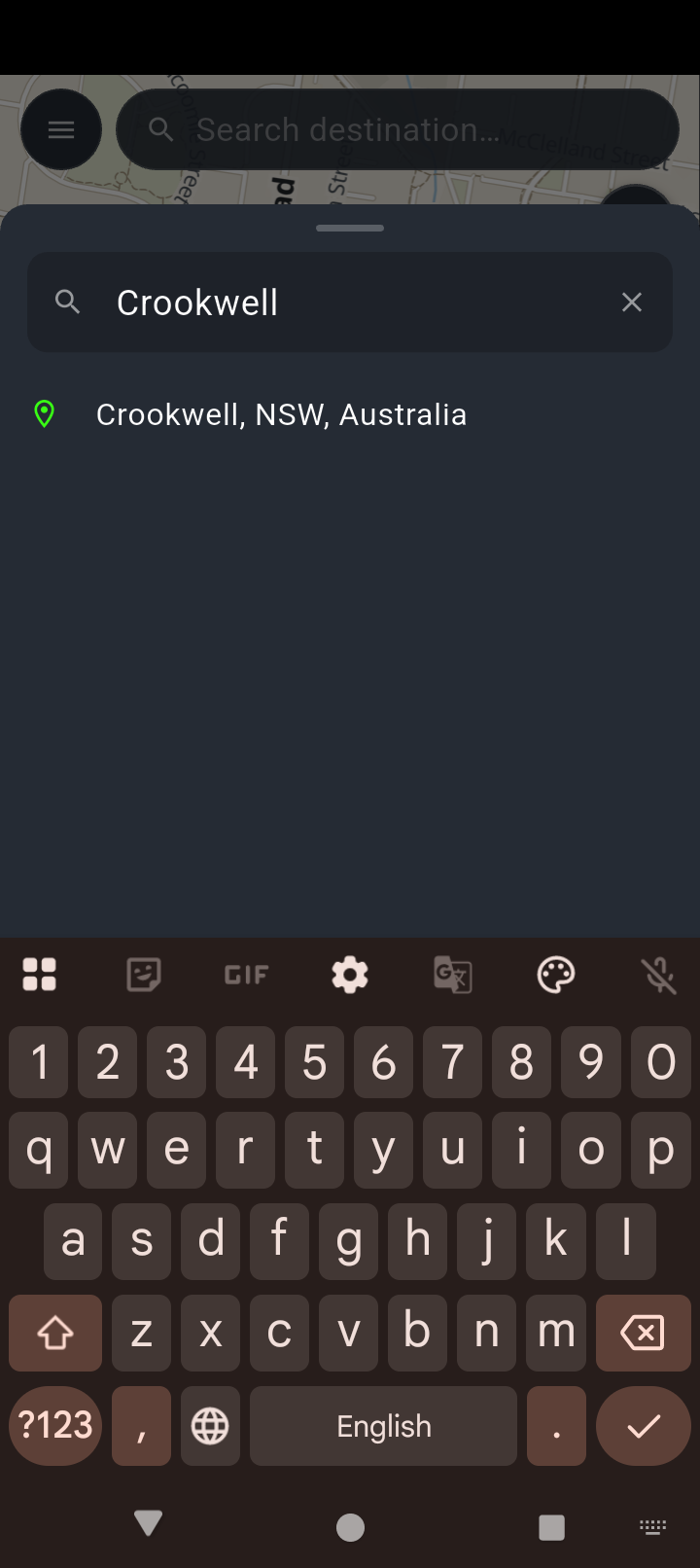
Type and results appear underneath. This one came from the downloaded region with no connection involved.
One clean match here — a town name is the kind of search that works well offline.
Searching step by step
-
Tap the search bar
It sits at the top of the map, next to the menu button. A sheet slides up and the keyboard opens straight away.
-
Type at least two letters
Nothing is searched until you’ve typed two characters. Below that you’ll see Type at least 2 characters to search for a destination, or your recent searches if you have any.
-
Wait a beat
The app waits until you stop typing before it searches, so it isn’t firing off a lookup on every keystroke.
-
Tap a result
The map moves to it and drops a pin, and a panel appears with what you can do next.
What you can do with a result
Once you’ve picked a place, you get four choices:
- Set as Destination — the usual one. If you haven’t set a start yet and your GPS has a fix, your current position is used automatically.
- Set as Start — begin the route somewhere other than where you’re standing.
- Add Waypoint — drop it in as a stop along the way.
- Add Marker — save the spot for later, without routing to it. This one is hidden if you already have the route planner open.
With signal vs without
This is the part worth reading properly, because the two behave differently.
With signal
You get full address lookup — street numbers, business names, brands. Searching shell or bp finds fuel stations near you rather than places called Shell. Results are biased toward where you are, so liverpool gives you the one in New South Wales rather than the one in England.
Without signal
Search still works, using the map region you’ve downloaded. You can find:
- Towns, suburbs, cities, villages and hamlets
- Road and street names
- Named fuel stops, food, hotels, camping and attractions
Looking for Broken Hill with no signal? Typing hill will find nothing. Typing broken finds it. With signal this doesn’t apply — it’s only the offline index that works this way. If a search comes up empty out in the scrub, try the first word of the name.
House numbers aren’t in the offline data, so 42 Church Street won’t resolve when you’re out of range. Search for the street or the suburb instead, then pan the map.
If you get no results
You’ll see No results found, and underneath it a reminder to download a map region if you’re offline. That message is the app’s way of telling you the most common cause: offline search has nothing to search until a region is on your phone.
Other things worth trying:
- Use the first word of the name rather than a word from the middle.
- Drop the street and search the suburb.
- If you’re in a patchy spot, give it a moment — the app waits a few seconds for a reply before falling back to the offline index, so a weak signal can feel slow rather than broken.
Recent searches
Your last ten destinations are kept and shown whenever the search box is empty or nearly empty. They’re stored on your phone, work with no signal at all, and survive restarting the app.
Clear wipes the whole list immediately — there’s no confirmation, so be sure.
Destinations you pick from the main map search are remembered. Ones you pick from inside the route planner aren’t. If a place you set recently isn’t in the list, that’s why.
Dropping a pin instead
You don’t have to search at all. Press and hold anywhere on the map and the app names the spot for you and offers the same options. If it can’t work out a name — common in remote country — it shows the coordinates instead, which still work perfectly well as a destination.