Ride settings
Open the menu and tap Ride Settings. This is where you set your lean-angle colour zones, decide how far ahead a turn is announced, choose the voice that speaks it, get sound into a helmet intercom, and switch speed camera alerts on or off.
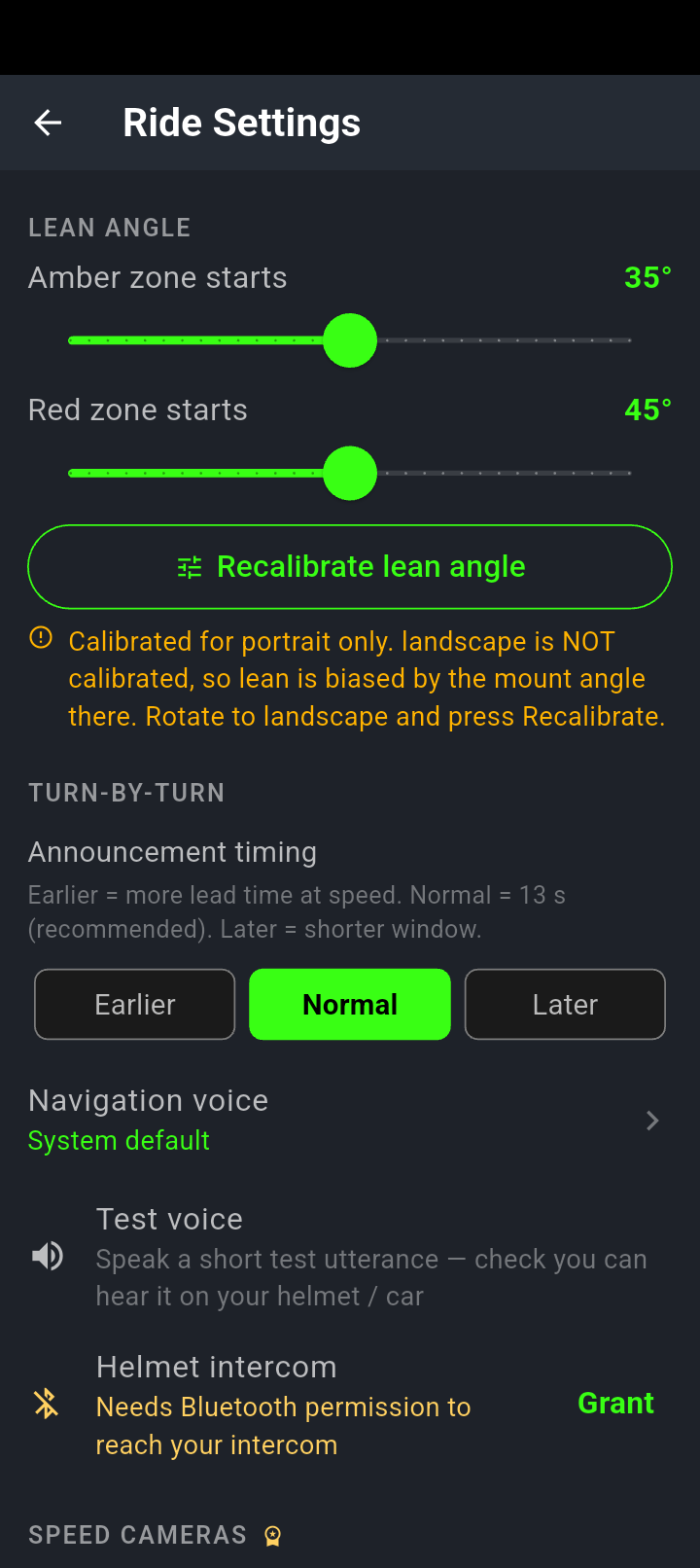
The top of the screen. Both lean sliders show their current value in green on the right, and the timing chips highlight whichever one is active.
The amber line under Recalibrate lean angle is the calibration status — here it is telling us the phone has not been calibrated in either orientation.
Lean angle zones
Two sliders decide when the lean readout changes colour. Amber zone starts can be set anywhere from 20° to 50°, and Red zone starts from 30° to 60°. Out of the box they sit at 35° and 45°.
They are not allowed to meet. If you drag the amber one up past the red one, the red one is pushed to 5° above where you left amber. Drag red down onto amber and amber gets pushed 5° below it. So if you close them up and one of them jumps, that is the app keeping a 5° gap, not a fault.
Recalibrating
Above the button, a status line tells you where you stand: Calibrated for portrait and landscape. with a tick, or an amber warning naming what is missing — and, helpfully, whether you are holding the phone that way right now.
Portrait and landscape are calibrated separately, and doing one does nothing for the other. Calibrate in portrait only and your lean readings in landscape are taken against an assumption rather than a measurement. The status line spells it out: Not calibrated. Park level, hold the bike upright, then press Recalibrate — once in each screen orientation. If one is done it names the other, and tells you whether to rotate the phone first.
Recalibrate lean angle teaches the app what “upright” looks like for the way your phone sits in its mount. It takes three seconds, during which the button reads Calibrating… (3 s), and finishes with Lean angle calibrated.
The sensors start when the map screen opens, so calibrating works any time you have used the app in that session — you do not need to be recording or navigating. Come straight into settings from a cold start and you get Sensors not running — start a ride first. That message asks for more than it needs: go back to the map, let it settle for a moment, then return here. Sit the bike upright and still before you tap.
When turns are announced
Announcement timing is three chips: Earlier, Normal and Later. What they actually change is how many seconds before the turn the voice speaks:
- Earlier — 17 seconds of warning
- Normal — 13 seconds, which is what the app ships with
- Later — 9 seconds
Because it is a time and not a distance, the gap on the road stretches and shrinks with your speed. Thirteen seconds is around 360 m at 100 km/h and around 220 m at 60 km/h. On a fast highway run Earlier buys you a lane change; around town it can put the announcement so far back that you have passed two other side streets before the turn arrives.
The timing is read once, when navigation starts. Change it mid-ride and the current trip carries on with the old setting — the new one takes effect the next time you start navigating.
Choosing a voice
Navigation voice lists every text-to-speech voice installed on your phone, sorted alphabetically by language. Tap it and a sheet slides up with a Search language… box, a running count along the lines of 12 of 340 voices, and a radio button beside each one. Type a few letters to narrow it down; if nothing matches you get No voices match.
Where your phone has several voices for the same language, they are numbered — English (Australia) · Voice 1, Voice 2 and so on — because the underlying names are unreadable strings. Until you pick one, the setting shows System default.
The voice, intercom and camera rows. The green line under Navigation voice is whichever voice is currently selected.
A padlock beside the Speed Cameras heading means camera alerts are not switched on for your phone yet, and the toggle is replaced by a short description of what it does.
Test voice
Test voice speaks one line — NavForge voice test. If you can hear this, TTS is working. — through whatever audio path the app would use for a real turn instruction. Use it in the driveway with your helmet on, before you find out on a roundabout that the sound was going to the phone speaker. If the engine is busy and the line is dropped you will see Test voice dropped — TTS may be busy. Try again.
Helmet intercom
This row is not a switch any more — it is a status line that tells you where the sound is actually going, and it says one of four things:
- Needs Bluetooth permission to reach your intercom — with a Grant button beside it. NavForge can’t see your headset until Android lets it.
- Checking… — briefly, while it looks.
- Connected — directions go to your helmet — the one you want before you set off.
- No intercom detected — pair your helmet in Android Bluetooth — permission is granted but nothing is paired, so it tells you where to go and fix it.
The old row was a switch labelled Helmet Intercom (HFP) that reported whether the feature was enabled — not whether a headset was actually there. You could read “Connected” with your intercom switched off. It now reports what is true rather than what was requested, which is why there is nothing left to toggle.
What tapping Grant does
Grant asks Android for Bluetooth permission, and you get one of three replies at the bottom of the screen:
- Allowed — Helmet intercom enabled — HFP mode active.
- Declined — Bluetooth permission denied — intercom will use A2DP. Guidance still reaches you, over the music channel instead of the hands-free one.
- Declined permanently, at some point in the past — Permission blocked — tap “Open Settings” to enable. and NavForge opens Android’s settings page for you.
Guidance is tagged as navigation audio, so Android routes it to a paired headset and ducks music rather than stopping it. Use Test voice above to confirm the path before you ride — it is the only way to know for certain.
The line under a switch ends with · default when it is sitting where it left the factory, and · default is on or · default is off when you have moved it. It is a small thing, and it means you never have to remember which of these you changed six months ago.
Speed camera alerts
The Speed camera alerts switch controls whether you are warned about fixed cameras. It works during turn-by-turn navigation and while you are riding with no route set, and it needs the camera data that comes down with your map region.
The warning is timed rather than fixed to a distance. The app watches how fast you are closing on the camera and speaks up roughly 15 seconds out, with two hard limits either side: you are never warned more than 500 m ahead of it, and never less than 80 m — closer than that there is no time to read the banner, so it stays quiet.
It still quotes two fixed distances for navigation and free riding. The app has not worked that way for some time. The 15-second rule with the 500 m and 80 m limits, in both modes, is what actually happens.
This is the only place the switch lives. It used to have a second copy on the Settings screen, and the two could disagree: each read the setting once when its screen was built, so flicking one left the other showing the old state. The duplicate was removed. If you are looking for camera alerts in Settings, they are not there — they are here.